Slack · Templates
Formatting Google Forms Notifications in Slack: Bold, Links, Mentions and More
Turn a wall of answers into a message people can scan: Slack’s mrkdwn syntax for bold, links, quotes, emoji and @mentions, with ready-to-copy templates.
By Slacify Team · Makers of Slacify · · 2 min read
A good form notification can be read in two seconds: who submitted it, what they want, and where to click. Slack’s formatting syntax, called mrkdwn, gets you there. It looks like Markdown but has a few differences worth knowing.
The basics
*bold*: single asterisks, not double._italic_and~strikethrough~.- Backticks around text for inline code, and three backticks on their own lines for a code block.
>at the start of a line for a quote. Great for long free-text answers.- New lines are kept as they are, so just press Enter in the template.
Links
Slack links use angle brackets: <https://example.com|link text>. Combined with a variable, you can link straight to the response: <{{Response Link}}|Open response>. A bare URL is linked automatically too.
Mentions
<!here>notifies active members of the channel;<!channel>notifies everyone. Use them sparingly.<@U0123ABCD>mentions a person. Find the member ID in their Slack profile under ⋮ → Copy member ID. Typing@namein the template won’t work.<!subteam^S0123ABCD>mentions a user group, such as your on-call team.
Emoji
Paste emoji directly (🎉) or use Slack shortcodes like :rotating_light:. A consistent emoji per form (💼 for sales, 🐞 for bugs) makes a busy channel much easier to scan.
Templates to copy
Lead / demo request
:briefcase: *New demo request* from *{{Name}}*
{{Company}} · {{Team size}} people · {{Work email}}
<{{Response Link}}|View response>
Bug report
<!subteam^S0123ABCD> :beetle: *{{Severity}} bug:* {{Summary}}
>{{Steps to reproduce}}
Reported by {{Respondent Email}}
Everything, compact
*New response to {{Form Name}}* ({{Timestamp}})
{{All Answers}}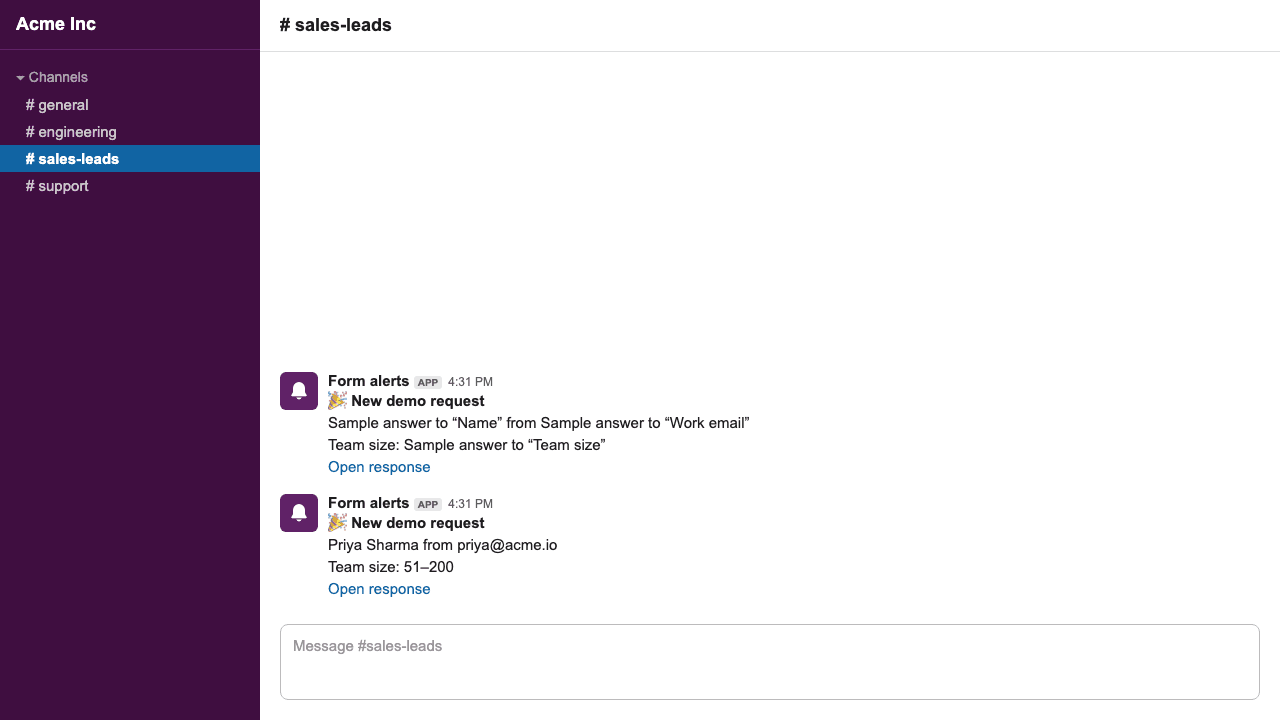
Going further: Block Kit
On Standard and Business plans you can switch a notification to Custom JSON and send a full Slack Block Kit payload, with sections, fields, dividers and buttons. Build the layout in Slack’s Block Kit Builder, paste the JSON, and put {{variables}} inside the quoted text values. Slacify escapes each value so quotes or line breaks in an answer can’t break the JSON.
Haven’t connected a form yet? Follow the step-by-step setup.
Send Google Forms responses to Slack
Custom messages with the answers built in, posted seconds after someone hits Submit. Free 7-day trial.