Slack · Guide
How to Create Multiple Slack Webhooks (and Post One Form to Several Channels)
A Slack incoming webhook posts to exactly one channel. Here’s how to create more of them and send the same Google Form to #sales, #support and beyond.
By Slacify Team · Makers of Slacify · · 2 min read
Slack incoming webhooks are simple: you POST a message to a URL and it appears in a channel. The catch is in “a channel”. Each webhook URL is locked to the channel you picked when you created it. For apps built on Slack’s current platform, a channel field in the payload is ignored. To post somewhere else, you need another webhook.
The good news: one Slack app can have as many webhooks as you like, and adding one takes about thirty seconds.
Add another webhook to an existing app
- Open api.slack.com/apps and select the app you already use for form alerts.
- Go to Incoming Webhooks. Your existing webhooks are listed under “Webhook URLs for Your Workspace”.
- Click Add New Webhook to Workspace.
- Pick the new channel and click Allow.
- Copy the new URL from the list. Each row shows which channel it posts to.
Posting to a private channel
Private channels show up in the channel picker only if you’re a member. Join the channel first, then add the webhook. If the channel is archived later, the webhook stops working and Slack rejects messages with a channel_is_archived error.
Send one Google Form to several channels
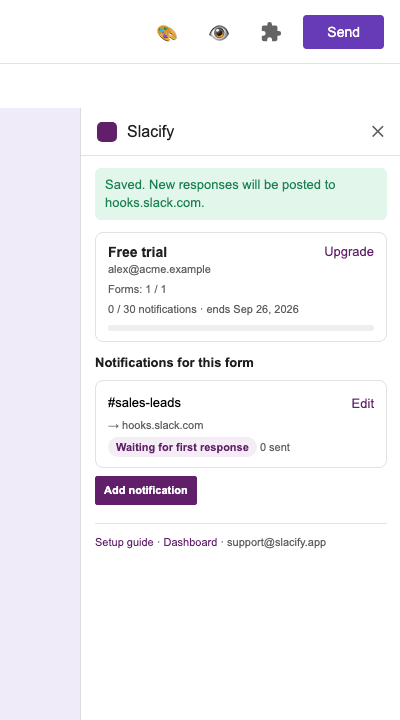
In Slacify, each notification has its own webhook URL and its own message, so you can do more than duplicate: tailor the message to each audience.
- #sales gets the lead: name, company, team size and a link to the response.
- #support gets the problem description and the respondent’s email.
- #leadership gets a one-line summary with
{{All Answers}}folded underneath.
Open the form, go to Add-ons → Slacify → Configure notifications, and click Add notification once per channel. A form can have up to 10 notifications. Each one shows its own delivery status, so if a channel gets archived you’ll see exactly which notification is failing.
Should you use one channel or many?
More channels means more noise, so split only when different people act on the response. A good rule: if a response needs one owner, post it where that owner works. If several teams need to know, post a short version to each and keep the full details in the team that follows up.
New to webhooks? Start with the full setup guide.
Send Google Forms responses to Slack
Custom messages with the answers built in, posted seconds after someone hits Submit. Free 7-day trial.