Guide · Slack
Slack Notifications for Google Forms Submissions: Step-by-Step Setup
Get a Slack message every time someone submits your Google Form. Create a webhook, write a message with the answers, and go live in about two minutes.
By Slacify Team · Makers of Slacify · · 3 min read
Google Forms is great at collecting responses and terrible at telling anyone about them. Unless someone remembers to check the Responses tab, a demo request or a bug report can sit unread for days. Posting each response to a Slack channel fixes that: the right people see it seconds after it arrives, and they can discuss it in a thread right there.
This guide sets that up with the Slacify add-on. There is no Zapier account, no spreadsheet in the middle and no code.
What you need
- A Google Form you can edit.
- A Slack workspace where you can add apps (or a workspace admin who can do step 2 for you).
- About two minutes.
Step 1: Install Slacify
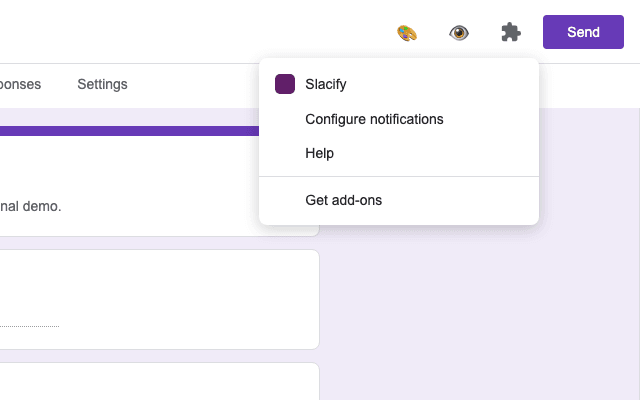
Install Slacify from the Google Workspace Marketplace and approve the permissions. Then open your form in edit mode, click the Add-ons icon (the puzzle piece) in the top bar and choose Slacify → Configure notifications. The sidebar opens on the right.
Step 2: Create a Slack incoming webhook
A webhook URL is the address Slacify posts to. Each one is tied to a single channel.
- Go to api.slack.com/apps and click Create New App → From scratch.
- Give it a name people will recognise in the channel, like “Form alerts”, and pick your workspace.
- Open Incoming Webhooks in the left menu and switch Activate Incoming Webhooks on.
- Click Add New Webhook to Workspace, choose the channel, and allow access.
- Copy the new URL. It starts with
https://hooks.slack.com/services/.
Treat the URL like a password: anyone who has it can post into that channel. Slacify stores it encrypted.
Step 3: Write the message
Back in the sidebar, click Add notification, give it a name and paste the webhook URL. Then write the message. Every question in your form appears as a button under Insert variable; click one and it’s added as a placeholder like {{Work email}}. When a response arrives, the placeholder is replaced with that person’s answer.
*🎉 New demo request*
*{{Name}}* from {{Company}} ({{Work email}})
Team size: {{Team size}}
<{{Response Link}}|Open the response>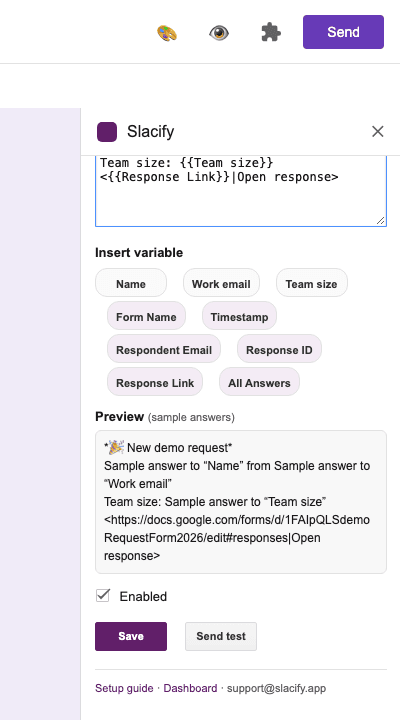
Besides your questions you can use {{Form Name}}, {{Timestamp}}, {{Respondent Email}}, {{Response Link}} and {{All Answers}}, which lists every question and answer. The preview under the editor shows the message with sample answers as you type. For bold text, links and mentions, see our Slack formatting guide.
Step 4: Send a test, then save
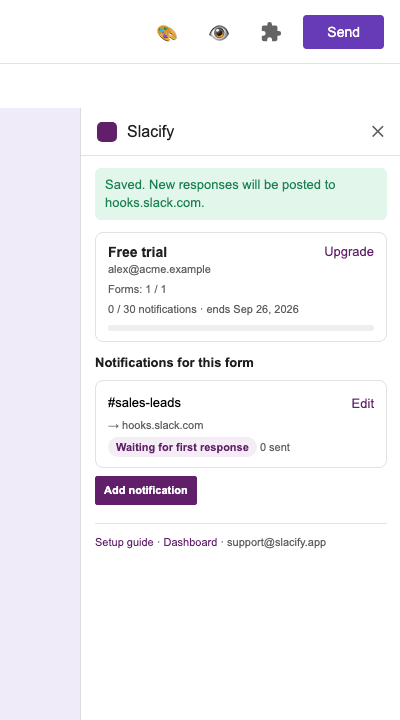
Click Send test. A message with placeholder answers lands in your channel, so you can check the formatting before a real person submits anything. Tests don’t count toward your plan. When it looks right, click Save. Slacify installs a form-submit trigger for you, and from now on every response is posted automatically.
Step 5: Submit the form to check it
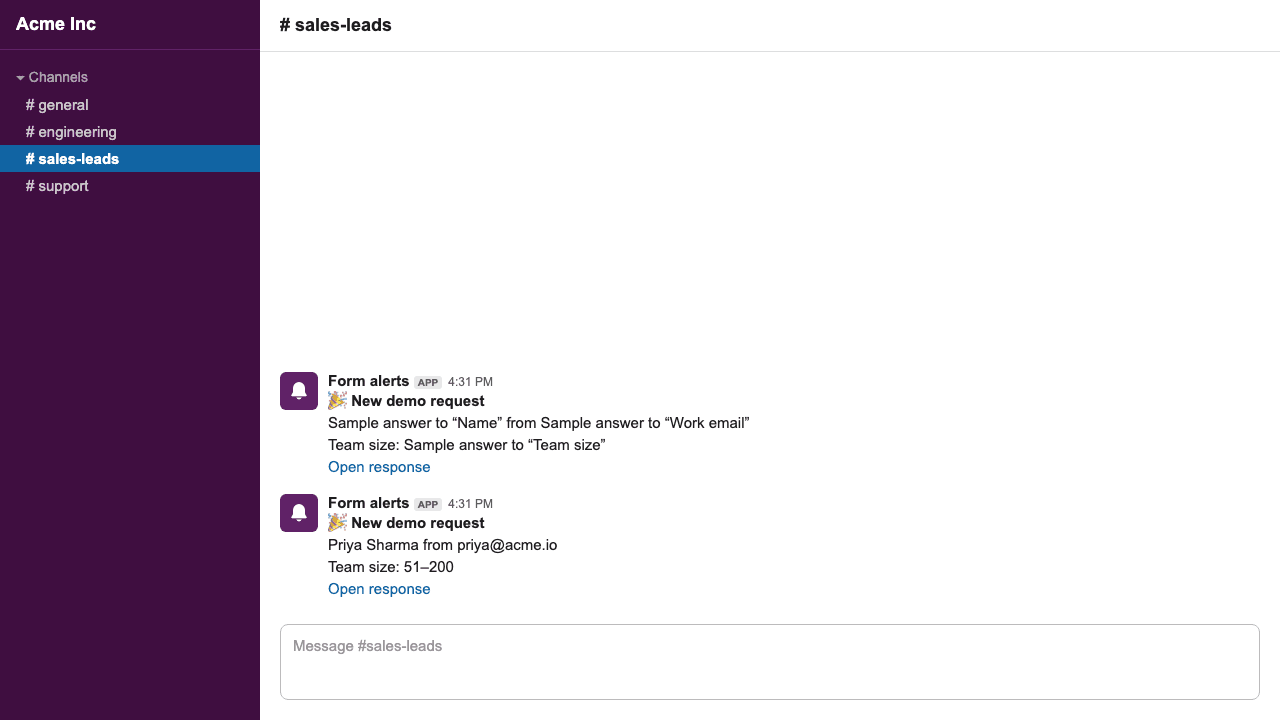
Open the form’s preview (the eye icon), fill it in and submit. The message should appear in Slack within a few seconds. Back in the sidebar, the notification now shows Delivering with the number of messages sent. If something went wrong, it shows the status code Slack returned instead. Our troubleshooting guide explains each one.
Where your data goes
The message is built and sent by the add-on inside your own Google account, straight to Slack. Slacify’s servers never receive the responses. They only store your plan and your notification settings.
Next steps
- Send the same form to several channels: create multiple Slack webhooks.
- Post to Discord or Google Chat instead: Google Forms to Discord and Google Forms to Google Chat.
- Compare the other ways to get alerted: Google Forms notification options.
Send Google Forms responses to Slack
Custom messages with the answers built in, posted seconds after someone hits Submit. Free 7-day trial.